Markdown features
Every Markdown feature this theme styles, in one post. Copy what you need into your own posts.
Frontmatter
Every post starts with a frontmatter block. The theme reads these fields:
title: the post title, shown in the header, the list, and the browser tab.description: a short summary, used under the title and in search results.date: the publication date, inYYYY-MM-DDformat.tags: an optional list. Each tag links to its own archive page.draft: optional. Set it totrueto keep a post out of the build.
Headings
Second-level headings (##) become sections. They also fill the table of contents on the left, which highlights the section you are reading. Third-level headings (###) add structure inside a section without showing up in the table of contents.
A third-level heading
Use these to break up a long section into smaller topics.
Another third-level heading
Keep headings short, so they read well in the table of contents.
Text formatting
Plain paragraphs are separated by a blank line. Inside a paragraph you can write bold text, italic text, and bold italic text. You can also write inline code for file names, commands, and short snippets.
Links look like this: Astro. They get an animated underline when you hover over them.
Lists
An unordered list:
- The first item
- The second item
- The third item
An ordered list:
- Clone the repository
- Install the dependencies
- Start the dev server
Lists can be nested:
- Palettes
- Autumn
- Winter
- Spring
- Summer
- Modes
- Light
- Dark
Blockquotes
A blockquote is useful for quotes, callouts, or a note you want to set apart from the rest of the text.
It can span more than one paragraph.
Code blocks
Fenced code blocks are highlighted with Shiki. Add a language after the opening fence:
interface Post {
  title: string;
  date: Date;
  tags: string[];
}

function getPostTitles(posts: Post[]): string[] {
  return posts.map((post: Post): string => post.title);
}
npm install
npm run dev.card {
border: 4px solid var(--ink);
box-shadow: 6px 6px 0 var(--ink);
}A block without a language is shown as plain text:
No syntax highlighting here.Images
Images use the standard Markdown syntax. Put the file in src/assets/ and reference it with the @/ alias, which points to src/:
The text inside the brackets is the alt text. It describes the image for screen readers, so keep it short and specific. Here is the result:
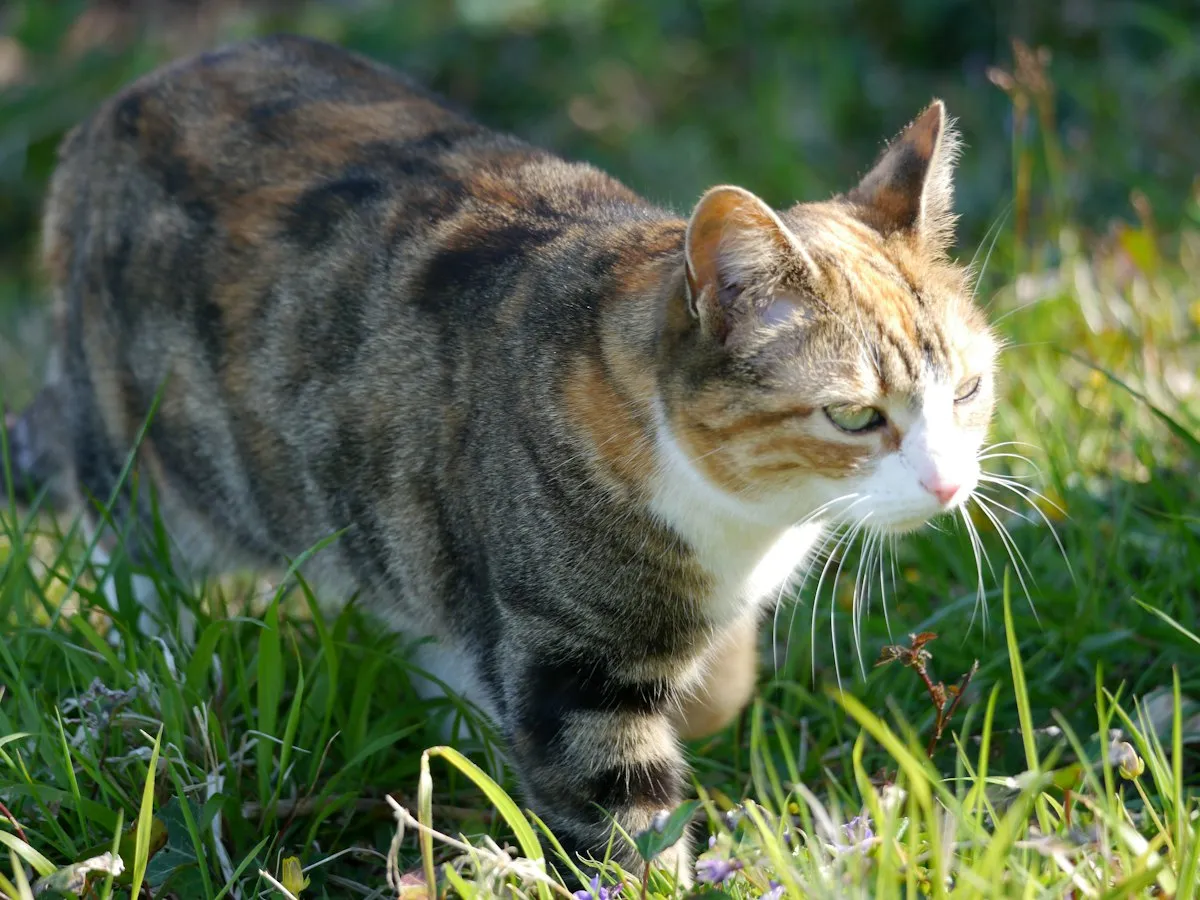
Astro optimizes images from src/assets/ at build time and adds the site’s base path for you. A relative path works too:
Images in public/ are served as-is, so Astro never optimizes them. Root-absolute paths like /assets/photo.jpg also don’t get the site’s base path, so they break when the site is deployed under a subpath. Prefer src/assets/ for post images.
The <Image /> component is not available in .md files. If you need it, rename the post to .mdx.
Putting it together
A post usually mixes these features. Start with a short introduction, split the rest into ## sections, and use lists, quotes, and code blocks where they help the reader.
To see how this page is written, open src/content/blog/markdown-features.md.